

Steam Launcher and Self-healing
Start many Steam accounts' games without the Steam client, and bring crashed ones back.
Steam Launcher logs each Steam account in by itself and starts NosTale on it, each account through its own proxy. Self-healing watches those games. When one closes, it starts the game again, starts Phoenix on it and logs the character back in.
Watch it, 65 seconds
What you can use it for
- Running many Steam accounts on one PC, each from its own address
- Starting a whole fleet with one click
- Keeping a long run alive when a game client crashes
What it has
- Starts NosTale on a Steam account without the Steam client
- A SOCKS5 proxy per account, with Test proxy
- Start all and Stop all, and Headless games that draw nothing in the background
- Steam Guard codes read from your mailbox, or typed by you
- Create account: a helper that opens Steam's sign-up in a browser window of its own
- The game is kept at Steam's newest version, with Check for update and Update game
- Starts Phoenix Bot on the game and logs a character in
- Self-healing restarts a closed game, attaches Phoenix and logs in again. Play in browser opens the game in a browser tab
How to use it
Connect and add an account
On Steam Launcher press Connect, then Add account. Type the Steam login, the password and the Steam Guard code once. Add a mailbox to have the codes read from your mail.
Set a proxy
Press Proxy on an account to connect through a SOCKS5 proxy. Test proxy shows the address Steam sees.
Choose Phoenix and Headless
Press Phoenix settings to start Phoenix by itself and set the server, channel and character. Tick Headless to save graphics power while the window is in the background.
Play
Press Play on one account, or Start all. The badge shows Logging in, Starting game and Running. Games start one after the other.
Turn on Self-healing
On Self-healing tick Bring closed Steam games back by themselves. Set Server, Channel and Wait before restart, and press Check helper.
Watch the list
Characters appear on Self-healing once their game and Phoenix are up. Restart now restarts one by hand.
Good to know
- You need the NosTale game installed on the PC and a Steam account that owns it. The launcher does not install the game.
- No account passwords are stored. An account keeps the login token that Steam gives. Mailbox passwords are kept on your PC, because they are needed for every login.
- Self-healing leaves a game alone that you closed from the launcher page. It gives up on an account after 4 restarts in an hour. It has not had its first live restart yet, so watch the first one. Starting Phoenix needs a small helper with administrator rights, which Windows asks for once.
- Play in browser is a prototype. The main way to play is the game client.
Screenshots
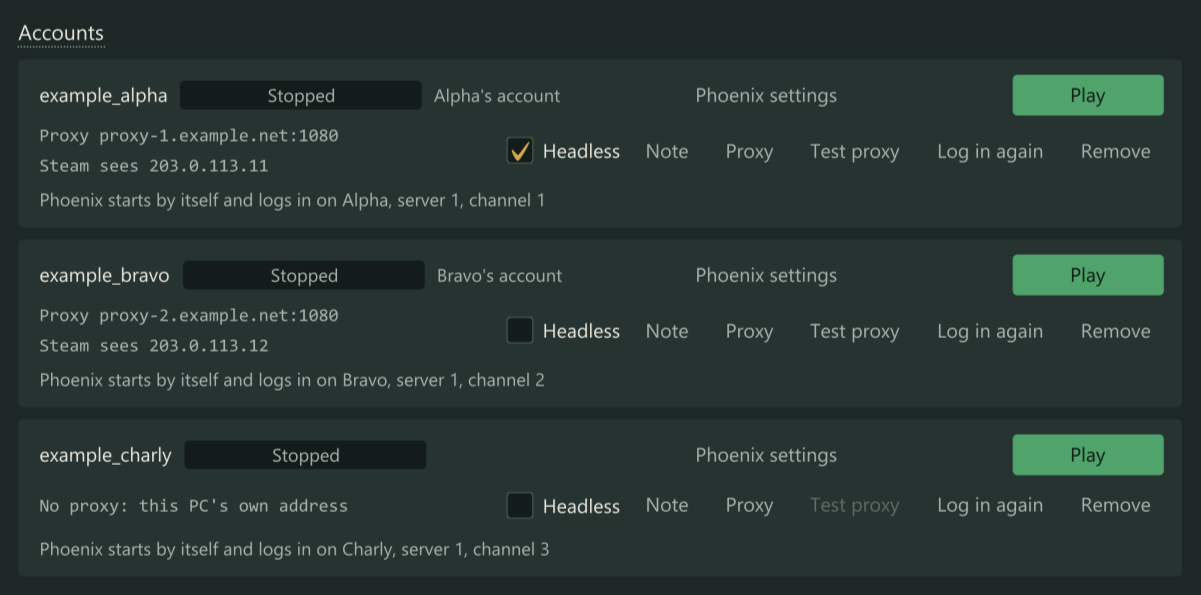
Accounts with their proxy, the address Steam sees and the Play button. Example accounts. 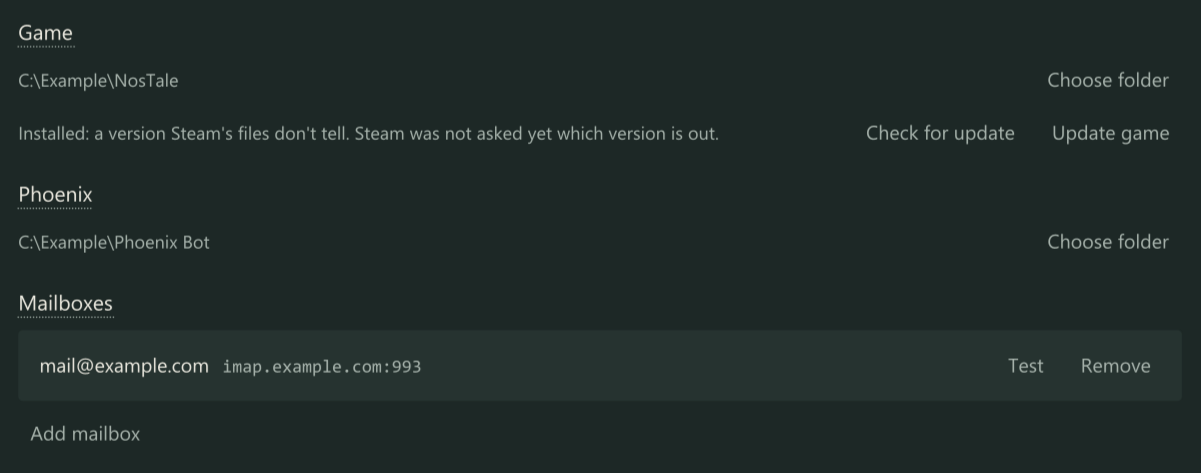
The Game, Phoenix and Mailboxes sections. 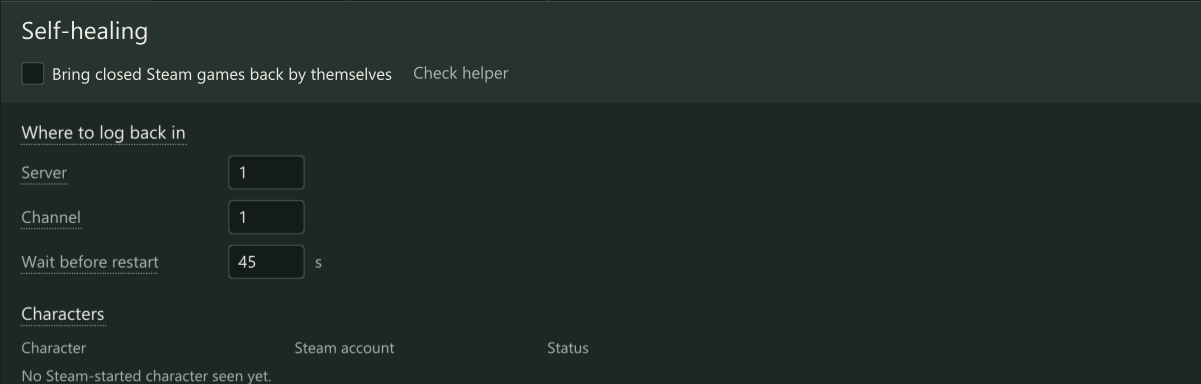
Self-healing: where to log back in, and the characters it watches.
Get Steam Launcher and Self-healing
Add this module to a licence key. Price and total are shown on the order page.